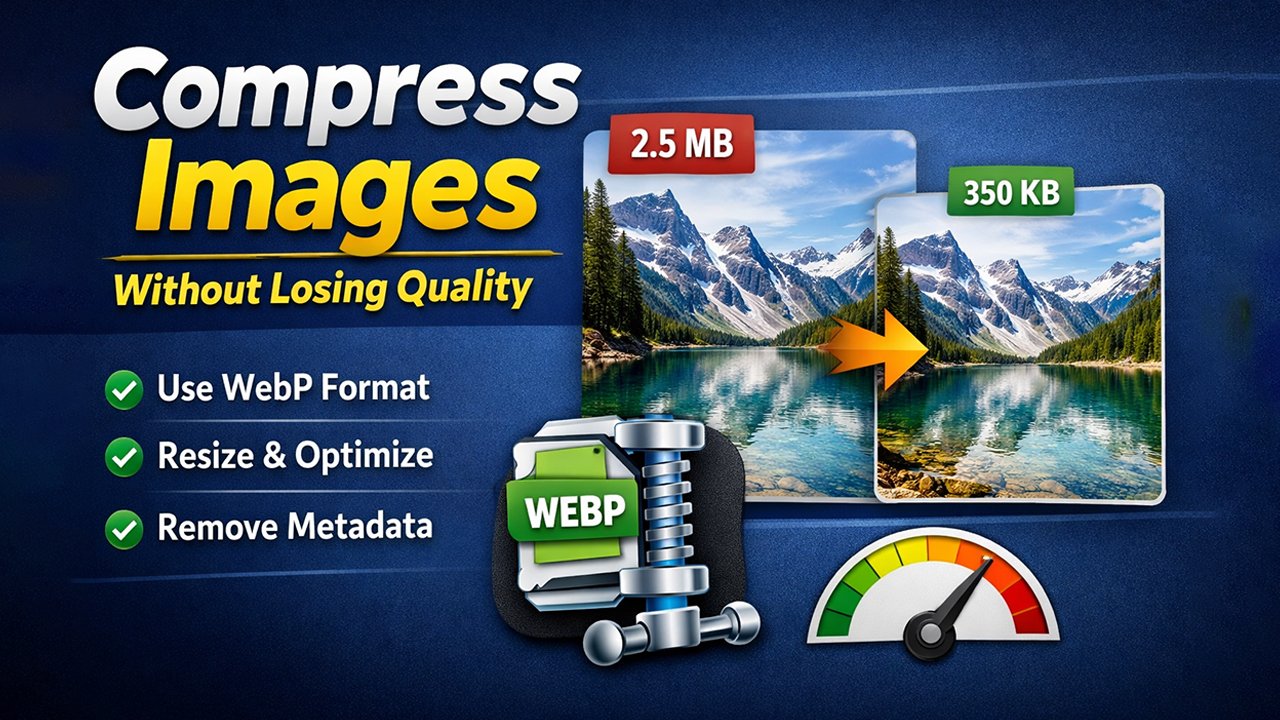
Image compression is important for websites, apps, and social media because large images slow down loading speed and take more storage. The good news is that you can reduce image size without making the image look blurry or low quality if you use the right methods.
In this article, you’ll learn simple and effective ways to compress images without losing quality.
1. Use the Right Image Format
Choosing the correct format is the first step in maintaining quality.
- JPG/JPEG → Best for photos and colorful images
- PNG → Best for images with transparency or sharp edges
- WebP → Best modern format (smaller size, high quality)
👉 If your website supports it, WebP is the best option because it gives smaller file size without visible quality loss.
Also See: Image Compress
2. Use Smart Compression Tools
Not all compression tools work the same way. Some reduce quality too much.
Good tools use lossless or smart compression, which removes unnecessary data but keeps the image looking the same.
When using tools:
Choose “lossless compression” if available
Avoid maximum compression settings if quality is important
3. Resize Images Before Uploading
A common mistake is uploading very large images and then shrinking them using CSS or HTML.
Instead:
- Resize image to actual required dimensions
- Example: If you need 800x600, don’t upload 4000x3000 image
- This alone can reduce file size by 50–80%.
Also See: Image Compress
4. Reduce Quality Slightly (Carefully)
For JPG images, reducing quality from 100% to 70–85% usually does not show visible difference but reduces size significantly.
Tip:
80% quality = best balance between size and clarity
5. Remove Unnecessary Data (Metadata)
- Images often contain extra data like:
- Camera settings
- Location info
- Editing history
- Removing metadata can reduce file size without affecting appearance.
6. Use Bulk Compression for Multiple Images
- If you have many images:
- Use bulk compression tools
- Process multiple files at once
- This saves time and ensures consistent optimization.
7. Enable Lazy Loading (For Websites)
If you are using images on a website:
- Enable lazy loading
- Images load only when user scrolls to them
- This improves page speed without changing image quality.
Conclusion
You can compress images without losing quality by:
- Using proper formats (WebP, JPG, PNG)
- Resizing images correctly
- Using smart compression tools
- Slightly reducing quality when needed
- Removing metadata
If done correctly, your images will look the same but load much faster.